Setting up AnySearch
Five steps, start to finish — here's exactly what each one looks like.
Step 1
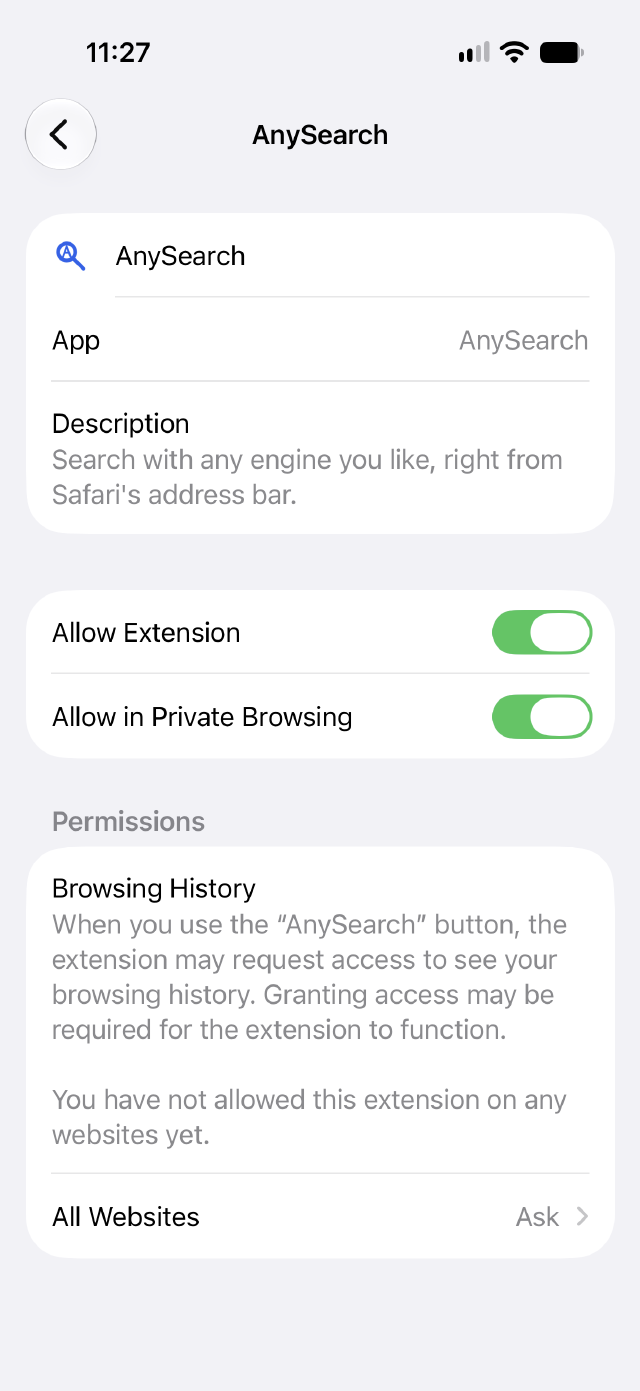
Turn on the extension
Open Settings › Apps › Safari › Extensions › AnySearch, then switch on Allow Extension. If you use Private Browsing, switch on Allow in Private Browsing too.
Step 2
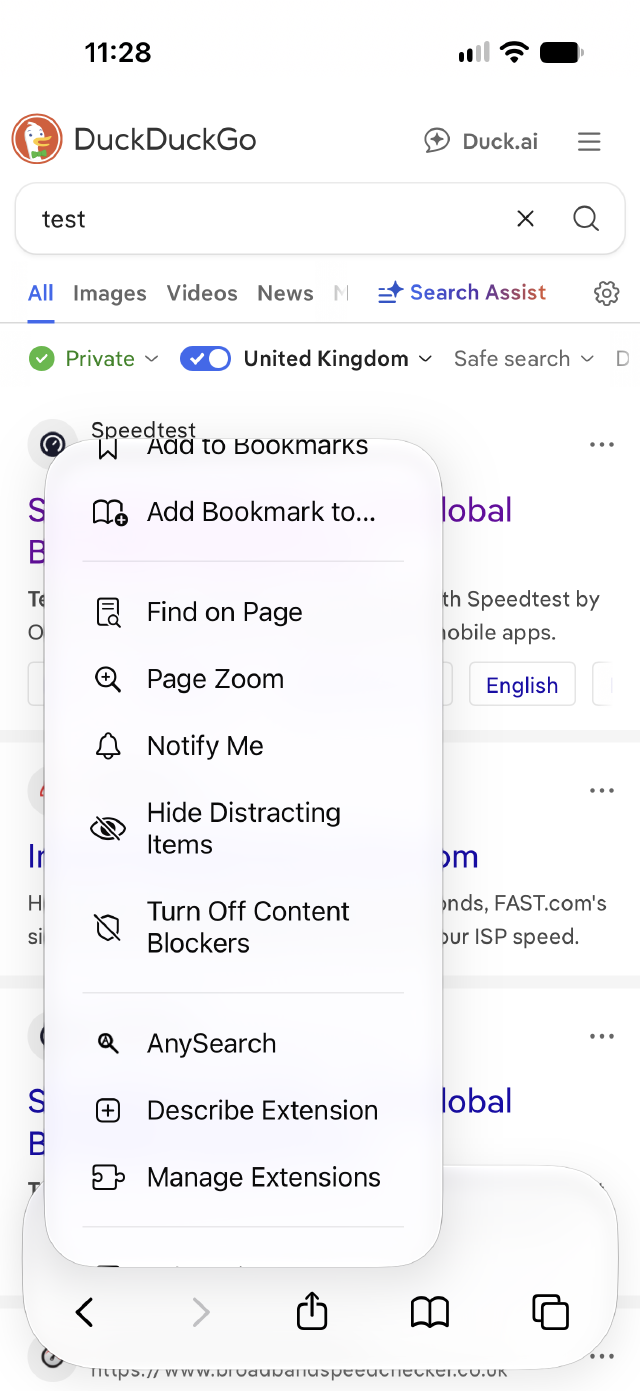
Open the extension menu
In Safari, do a search. Then tap the icon at the left of the address bar and select AnySearch from the pop-up menu.
Step 3
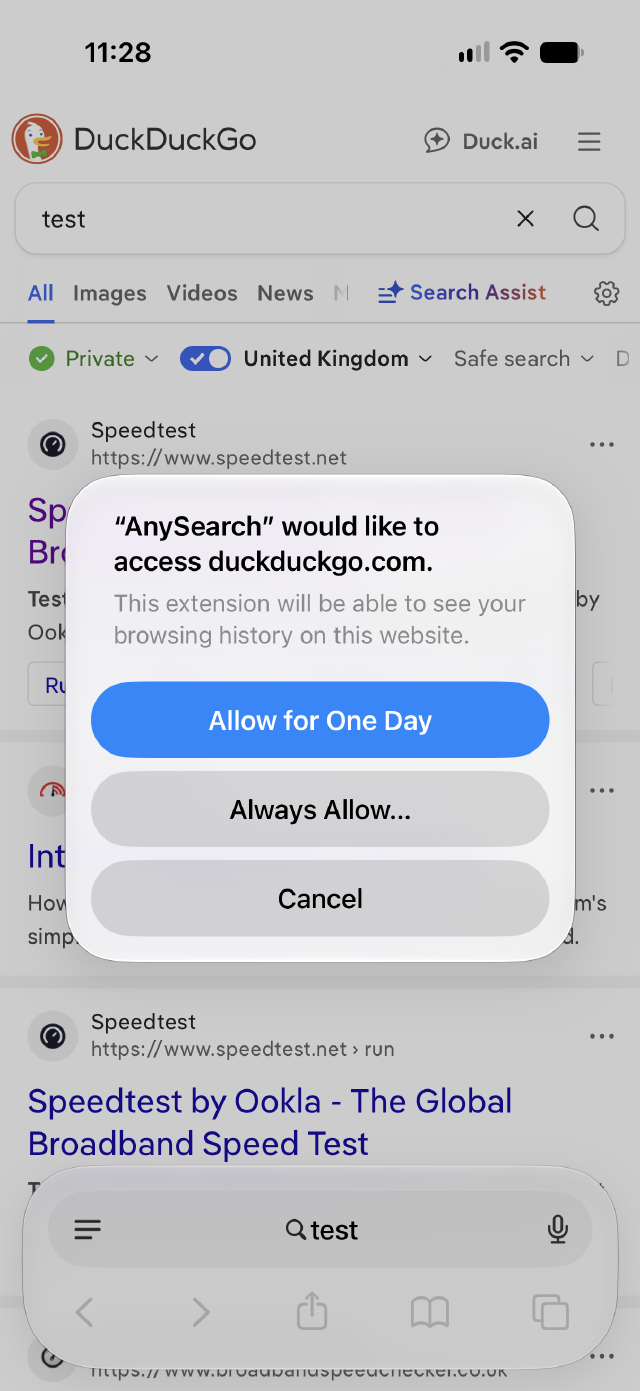
Grant access
The first time, Safari asks whether AnySearch can see the site you're on. Choose Always Allow…
Step 4
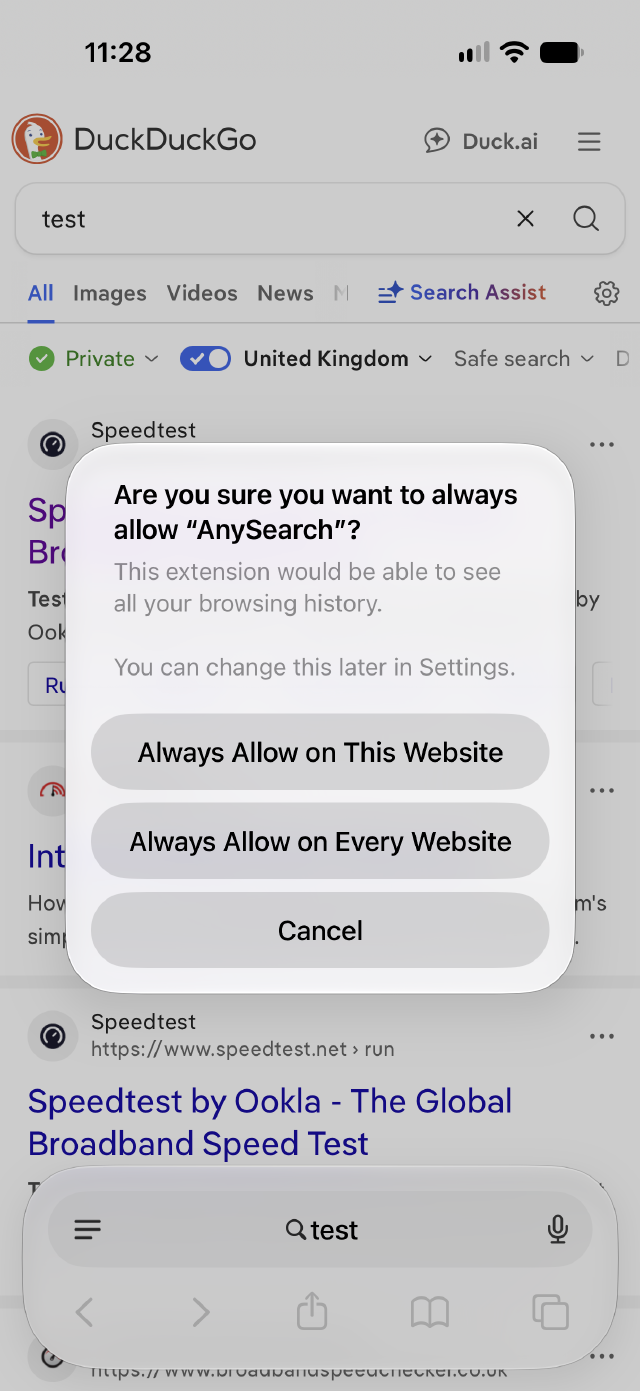
Confirm
Confirm with Always Allow on This Website — or Always Allow on Every Website if you'd rather not be asked again elsewhere.
Step 5
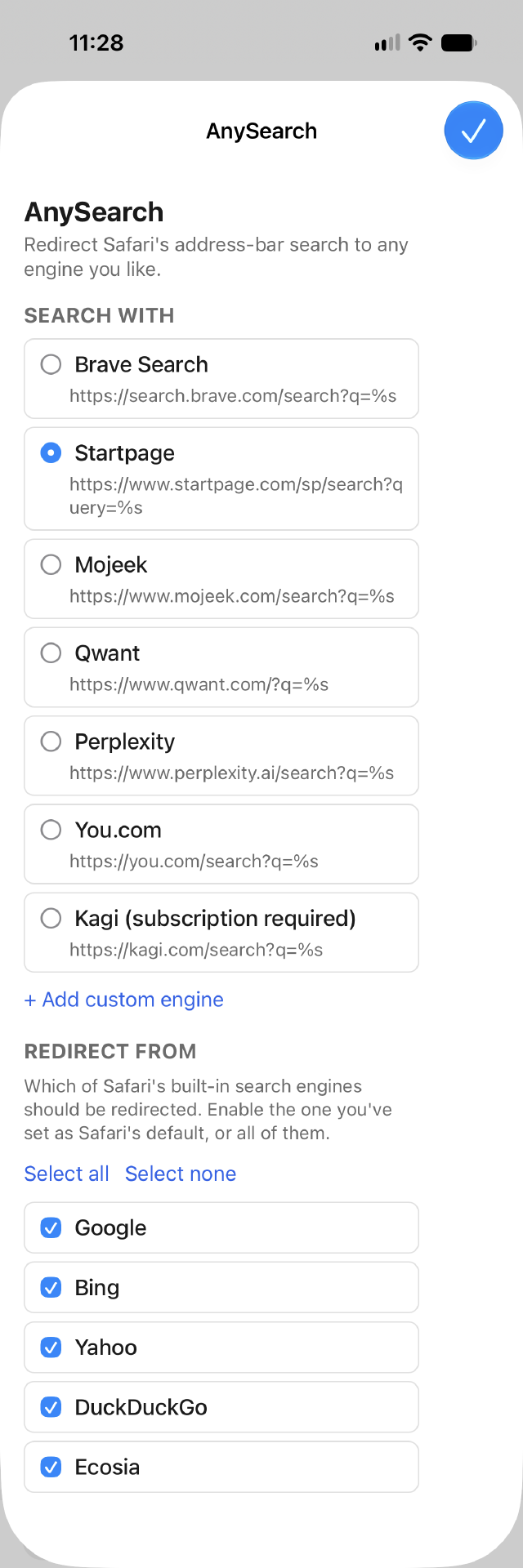
Pick your engine
AnySearch's own menu opens. Choose a search engine under Search With, and pick which of Safari's built-in engines to redirect under Redirect From.
Don't see AnySearch in the pop-up menu in Step 2? Fully close Safari (swipe it away in the App Switcher) and reopen it — newly enabled extensions sometimes need a fresh restart to show up.